You can now see which competitors run ads next to the AI answers you track, and read what each ad says.
The new Ads page brings ChatGPT ads tracking to your competitors, and it covers Google AI Mode and Google AI Overview too, for every prompt your project already tracks. (If you want conversion tracking for your own ChatGPT ads, that setup lives in OpenAI's Ads in ChatGPT help page.)
Why Competitor Ads in ChatGPT Are Easy to Miss
Your client still shows up in ChatGPT's answer for their best prompt. Yet the leads from that prompt have dropped, and the monthly client call is on Thursday.
So you type the prompt into ChatGPT yourself. You get the same answer as last month, with your client still in it.
Your client's buyers on a free account see more. They read the answer that mentions your client, then a competitor's ad right below it, with a link to the competitor's site.
(That ad never makes it into the monthly report, because nobody on your team has seen it.)
So the client's visibility looks fine on paper while the leads go down, and you have no way to explain why.
How to Track Competitor Ads in ChatGPT and Google's AI Answers
Getting to the page takes three clicks:
Open a project in SurgeGraph.
Click AI Visibility in the left sidebar.
Click Ads, right below Citations.
Ads has a small blue New badge for now, which we'll admit is mostly there so you find it on your first visit.
Pick the engines and the date range you want. Four summary cards at the top give you the overview:
Top advertiser: the advertiser running ads on the most of your prompts, across all engines
Advertisers seen: how many different advertisers appeared, including how many just started and how many stopped
Prompts with ads: how many of your scanned prompts had at least one ad, and how many had none
Your own ads: the prompts where your client ran ads, plus how many prompts (counted engine by engine) have a competitor's ad and none from your client
Get Your Clients Cited Where Competitors Already Are
Under the cards, Where to look first lists the prompts to check first. Each row shows the engine, the advertiser, and the advertiser's rank in the answer next to your client's rank.
Open a row to see that day's answer with the ads that ran beside it:
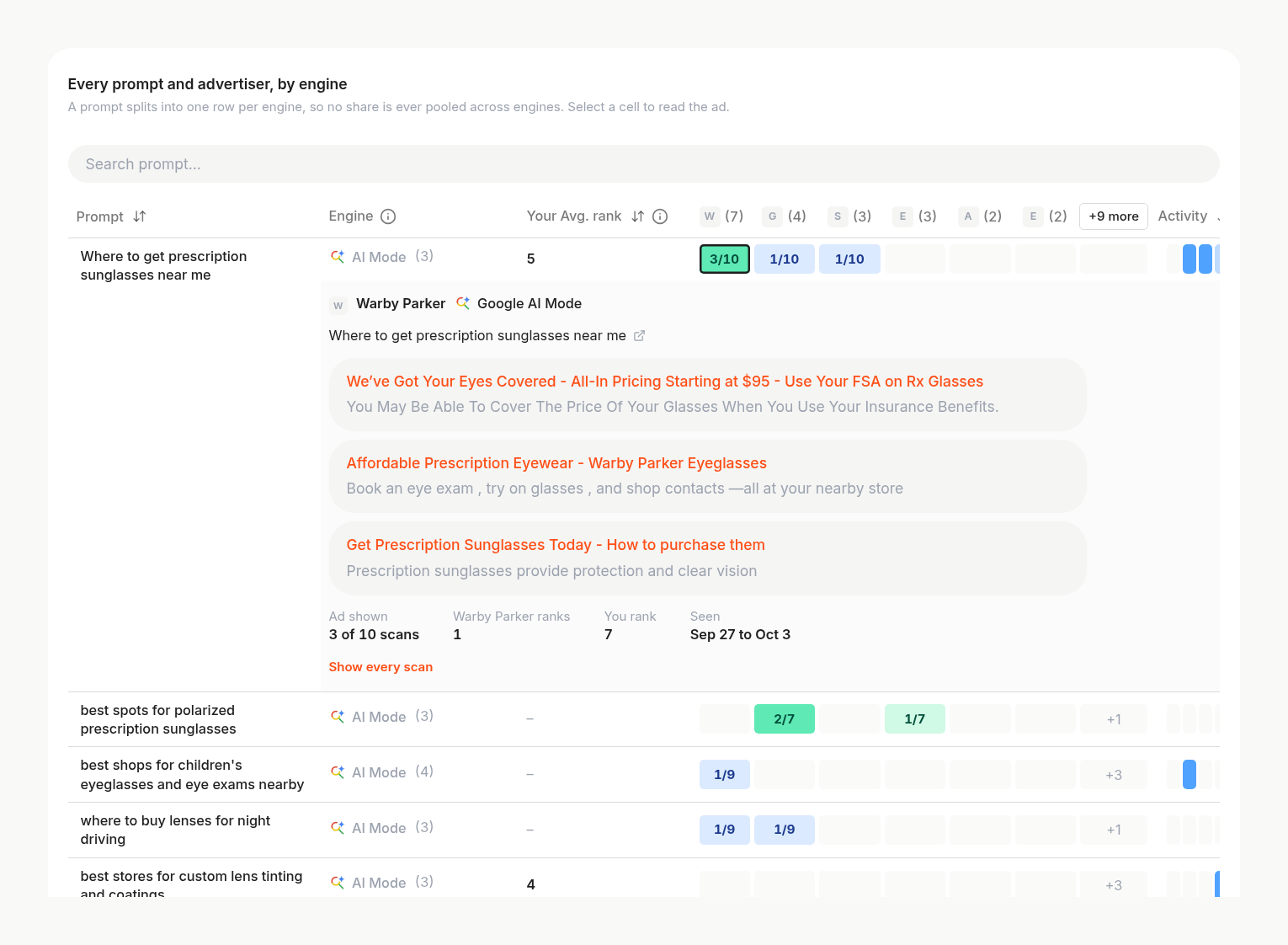
Below that is a grid with your prompts down the side and the biggest advertisers across the top. Each prompt gets one row per engine, so you can see a competitor's ads on ChatGPT separately from their ads on Google.
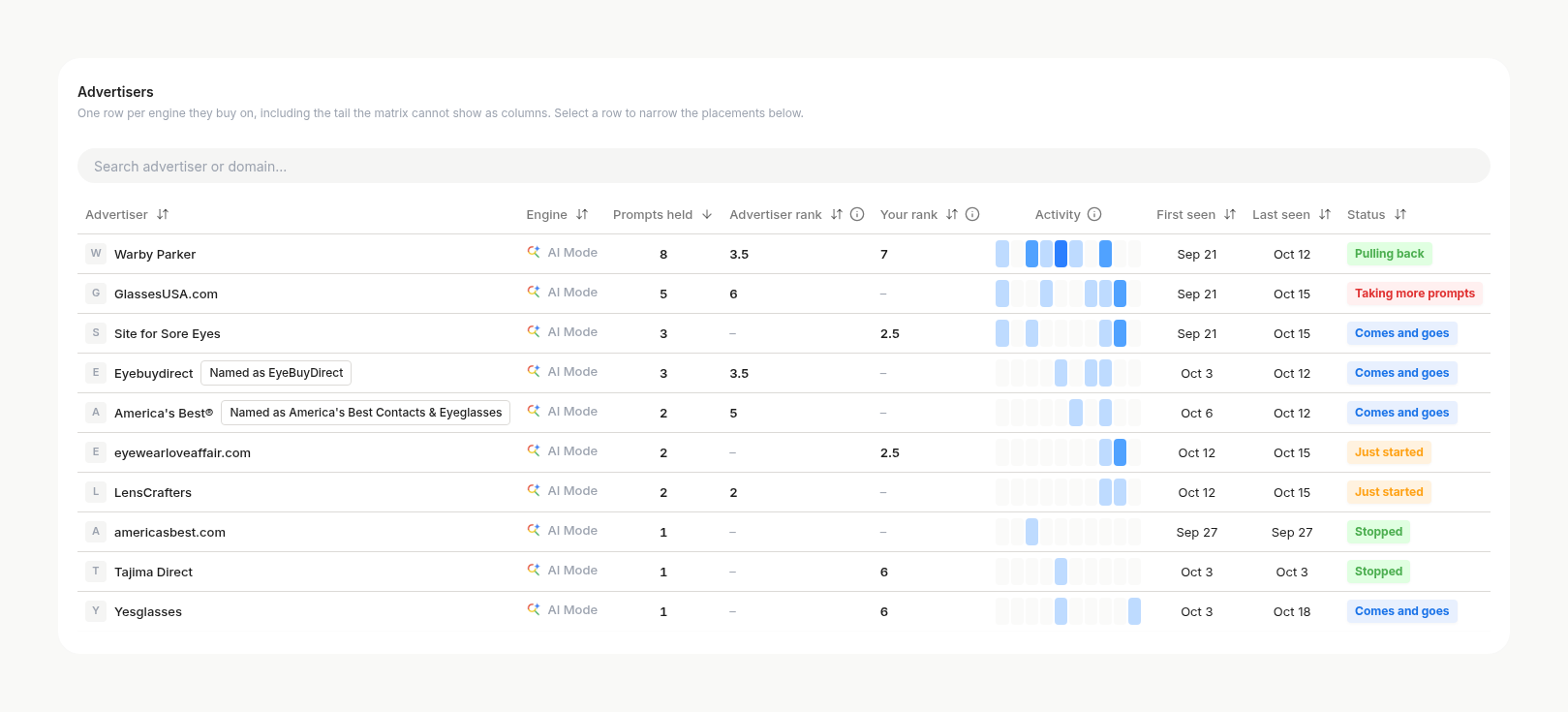
Smaller advertisers that don't fit in the grid are in the Advertisers list below it.
The darker a square, the more often that ad appeared in your scans. A dark square means a steady campaign, and a faint one means the competitor is only testing.
Click any square to read the competitor's ad, with its headline, description, image and link:
Every advertiser also gets a status in everyday words: On most rounds, Taking more prompts, Pulling back, Just started, Stopped or Comes and goes.
The colours read from your side. A competitor taking more prompts shows as a warning, and one pulling back shows as good news:
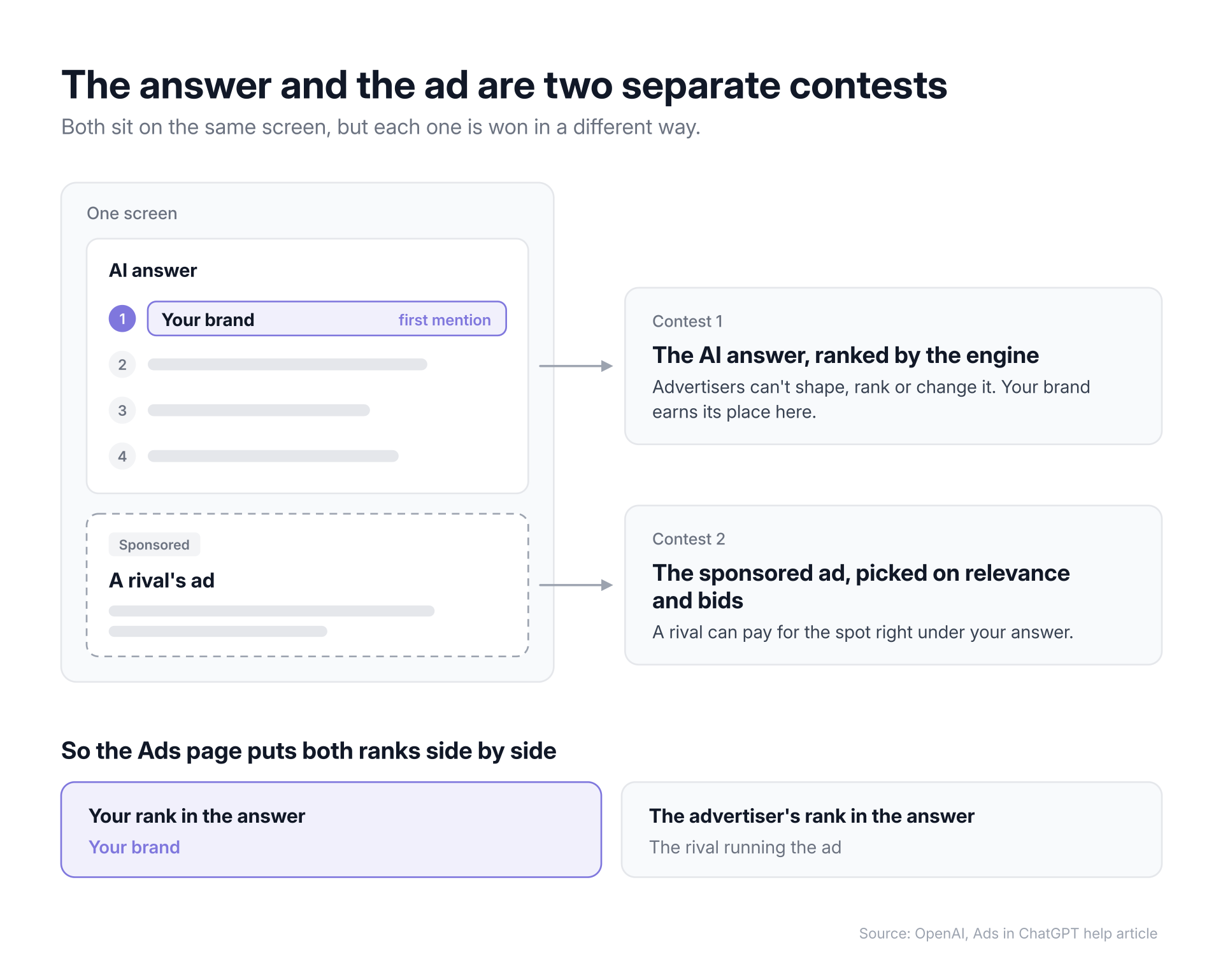
That means your client can be the first brand in the answer while a competitor pays for the ad right under it. Seeing both ranks side by side tells you whether you're losing the answer or losing to an ad.
The two placements can coexist on one screen:
Get Your Clients Cited Where Competitors Already Are
Because every engine sells ads separately, the page keeps each engine's numbers apart. A competitor who advertises heavily on ChatGPT and skips AI Overview shows up that way.
There's no setup. SurgeGraph checks every tracked prompt for ads each time it scans, so the data comes in with the tracking you already run.
If no engine sells ads in your project's market yet, the page tells you so. Once a scan sees an ad there, it appears on the page automatically.
Turning Competitor Ads in ChatGPT Into a Client Plan
The Ads page is built for agencies that handle both organic and paid work for a client. When a prompt stops bringing in leads, you can quickly check whether a competitor started advertising on it.
Take the Your own ads card to the client call. Its number shows how many prompts have a competitor's ad and none from your client, so "should we try AI ads?" starts from a specific figure.
Then open Where to look first or the grid to see which prompts those are, and decide one prompt at a time. You can run your own ad, improve your content for that prompt through Opportunities, or leave it alone if the competitor's ad only showed up a few times.
Start with one US project. Select ChatGPT, open the Ads page, and click the darkest square in the grid to read the ad your client's buyers have been seeing.
Frequently Asked Questions (FAQs)
Q: Do ChatGPT ads change what the answer says about my brand?
A: No. OpenAI says advertisers can't shape, rank or change ChatGPT's answers, and each ad sits below the answer, labeled as sponsored.
Q: Can you check the ads beside one prompt?
A: Yes. Expand the prompt in Prompt Performance and open its Ads tab. It lists every ad that ran beside that answer on that scan, with the advertiser, headline, description and link.
NOTE:
This article was written by SurgeGraph's AI writer using a custom Author Synthesis voice profile, then reviewed by a human editor. Author Synthesis learns a brand's voice from real writing samples so generated content matches its tone, cadence, and phrasing.
Chase Dean
SEO Specialist at SurgeGraph
Chase is the go-to person in making the “Surge” in SurgeGraph a reality. His expertise in SEO spans 6 years of helping website owners improve their ranking and traffic. Chase’s mission is to make SEO easy to understand and accessible for anyone, no matter who they are. A true sports fan, Chase enjoys watching football.